Help & FAQ/Import guides

Export your Evernote notes
Evernote exports one notebook at a time, from the desktop app only. Pick the ENEX format and your notes arrive whole: formatting, tags, attachments, web clips, and the links between them.
Export a notebook
- Open Evernote on Mac or Windows. The web version and the phone apps cannot write .enex files.
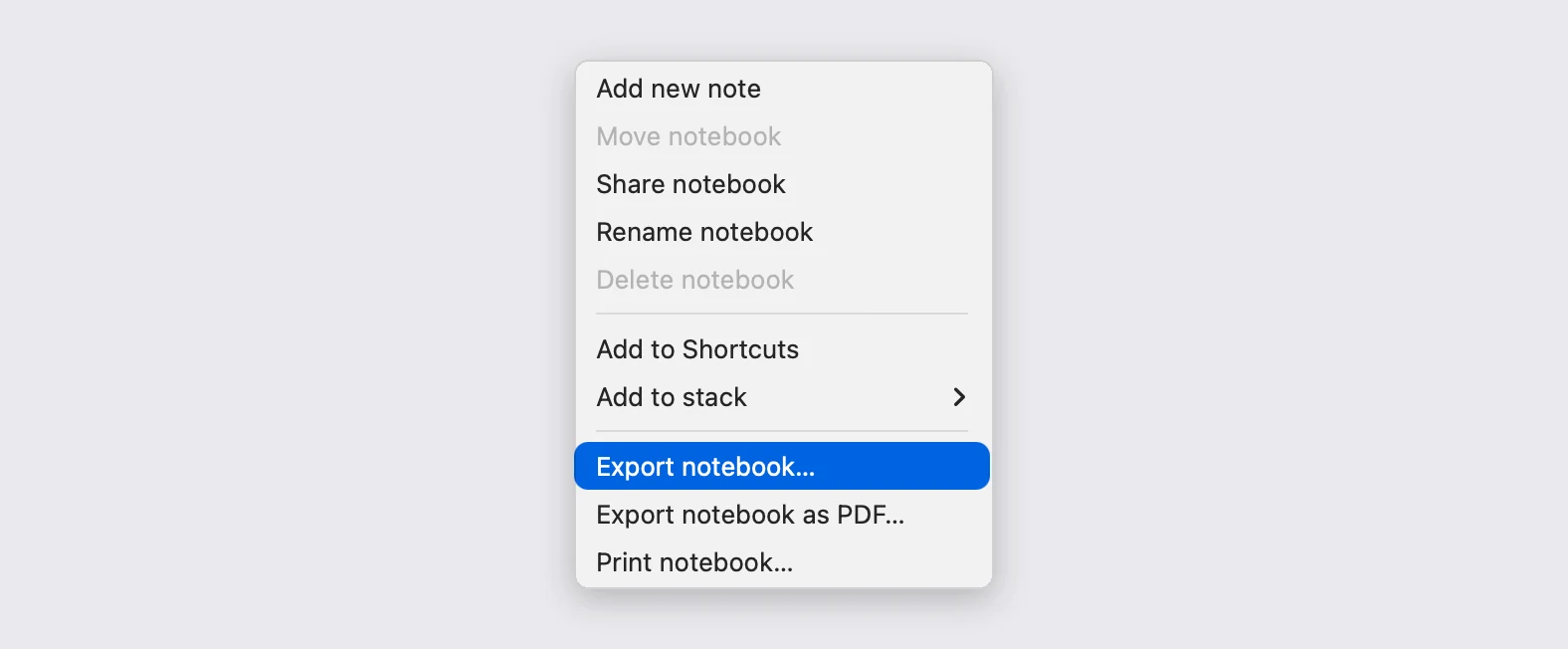
- Right-click the notebook in the sidebar and choose "Export notebook...".
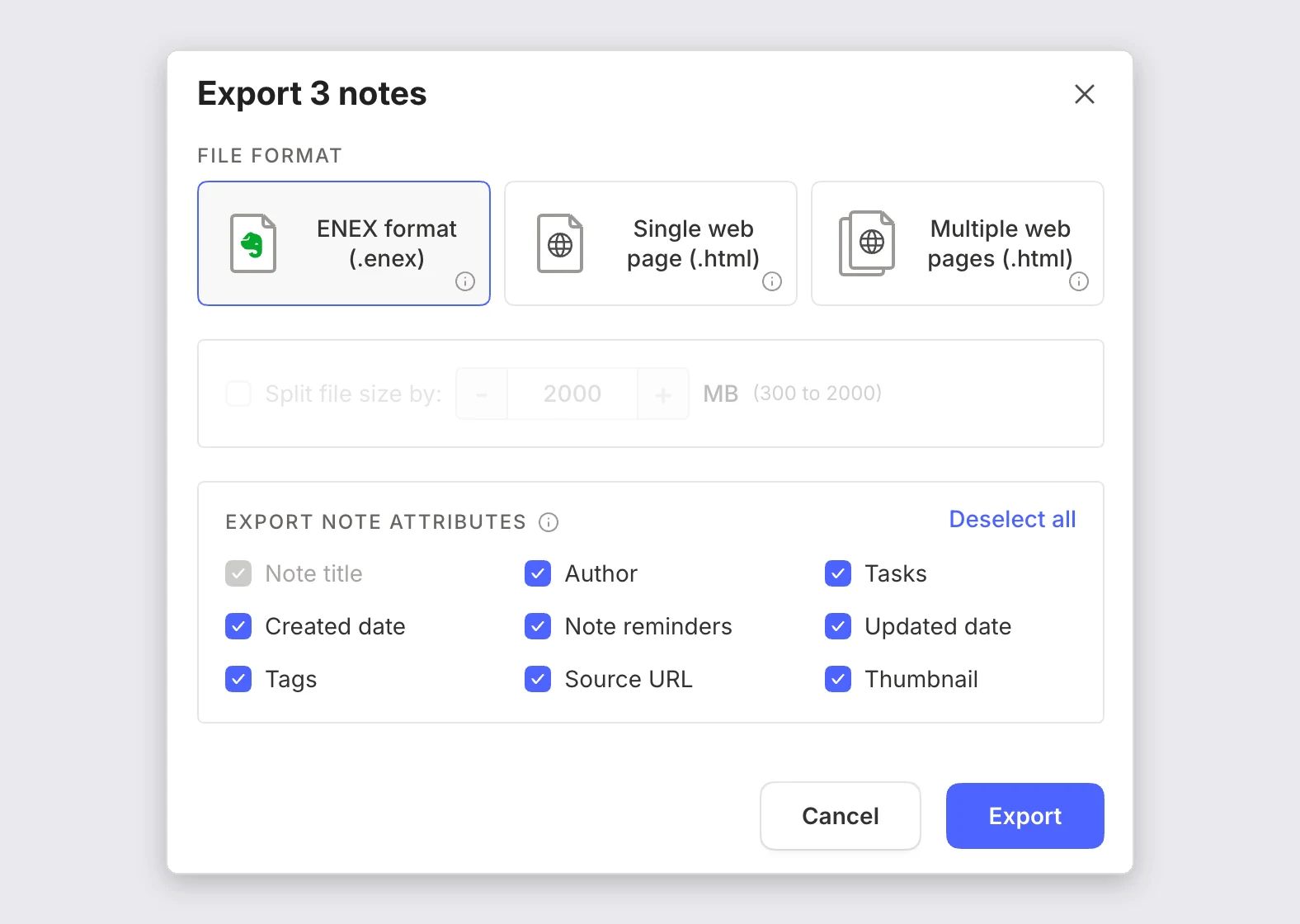
- Pick "ENEX format (.enex)" and leave every box under Export note attributes ticked: they carry your tags, dates, reminders, and web clip URLs.
- Save the file. Evernote names it after the notebook, and that name becomes the folder on this end, so keep it.
- Drop that .enex in as it is. If you have more than one notebook, repeat the export for each, then zip the .enex files together and drop the zip in once.
Pick ENEX, not the HTML or PDF exports
The other three formats do not survive the trip. Both HTML exports bloat every note with a copy of the same stylesheet and lose the filename and the download link for every attachment that is not an image, and the PDF export fuses the notebook into one document with no note boundaries left. Drop one of those in by mistake and we will say so rather than import half a notebook.
Leave "Split file size by" switched off unless the notebook holds gigabytes of scans.
One notebook at a time
There is no whole-account export, and a stack cannot be exported as a unit. Hand-picking notes caps you at 100 per export, so right-clicking the notebook is both faster and the only way past that limit. Stacks are not written into the file either, so your folders arrive flat.
Free plans can export, with one catch: the free tier allows a single connected device and this needs the desktop app.
What comes across, and what does not
Tables, code blocks, highlights, underline, text color, and formulas all survive. Checklists become task lists, note reminders become a task at the top of the note, attachments and images are re-encrypted into your storage, web clips keep their source URL, and voice notes keep their transcript. Internal links become note-links, matched on the linked note's title, since Evernote exports no note ids.
Tasks do not come across: the export leaves a "Content not supported" placeholder where each task block was, with no titles, due dates, or completion states left to read. Encrypted blocks stay encrypted, so decrypt them in Evernote first. Custom fonts, text alignment, and nested tag hierarchy are dropped.
If the export fails partway
Evernote keeps your notes on its servers and pulls them down as it writes the export, so a large notebook can stop at 13%, then 40%, then finish. Run the same export again: each attempt caches more of it locally and gets further than the last.
Import into PrivacyNotes
- Open PrivacyNotes and go to Settings > Import & Export.
- Pick Evernote as the source.
- Drop in the file you just exported, or click to browse.
- Check what the preview says will arrive, then start the import.
Still stuck? Ask your AI agent.
You get an answer in seconds instead of waiting for a reply. Your assistant reads all 153 answers and every import guide at once, so it can combine them, follow up on your question, and explain it in your own words. We never see any of it, because we do not run a chatbot.
- Copy the prompt.
- Paste it into ChatGPT, Claude, Gemini, or any other AI assistant.
- Ask your question, in your own language.
- Keep that chat open. Next time, ask straight away.
Show AI prompt
Answer my questions about PrivacyNotes using only its help center, its changelog and its security documentation.

Start here: https://privacynotes.app/llms-index.txt
It lists every question with the page that answers it. Fetch the one or two that match mine.
If you can only make one request, fetch https://privacynotes.app/llms-full.txt instead.
If you cannot fetch a .txt or .md file, read https://privacynotes.app/help, https://privacynotes.app/changelog and https://github.com/LifetimeLabsHQ/PrivacyNotes.app instead.

For what changed, or where something moved, fetch https://privacynotes.app/changelog.md.

For how the encryption works, what the server can read, or how to check any of it yourself, fetch https://privacynotes.app/docs/index.md and follow it to one of the documents it lists. That index is a router: cite the document, never the index.

Rules:
- Use only those pages. If they do not answer something, say so instead of guessing.
- Never invent a feature, a menu path, a price, or a limit.
- End your reply with the "Source:" URL from the page you used, exactly as written.
- Answer in the same language as my question.
- Never ask me for my recovery phrase, my PIN, or the contents of a note.

If no question follows, ask me what I would like to know.

My first question:
Never paste your recovery phrase, your PIN, or a note into an AI.