Help & FAQ/Import guides
Export your browser passwords
Chrome, Edge, Firefox and Safari all export their saved passwords as a plain .csv file, and PrivacyNotes reads every one of them, one login per row. Safari wraps its .csv in a .zip, which you can drop in unopened.
Export from Chrome, Edge, Brave, Opera, or Vivaldi
- Open your browser's Settings and go to its passwords page. In Chrome that is "Passwords and autofill" > Google Password Manager > Settings; in Edge it is "Profiles > Passwords".
- Find "Export passwords" and choose "Download file".
- Confirm with your device password or your fingerprint. The file is normally called passwords.csv.
Export from Firefox
- Type about:logins in the address bar and press Enter.
- Click the "..." button at the top right and choose "Export Logins...".
- Confirm with your device password. The file is called logins.csv.
Export from Safari
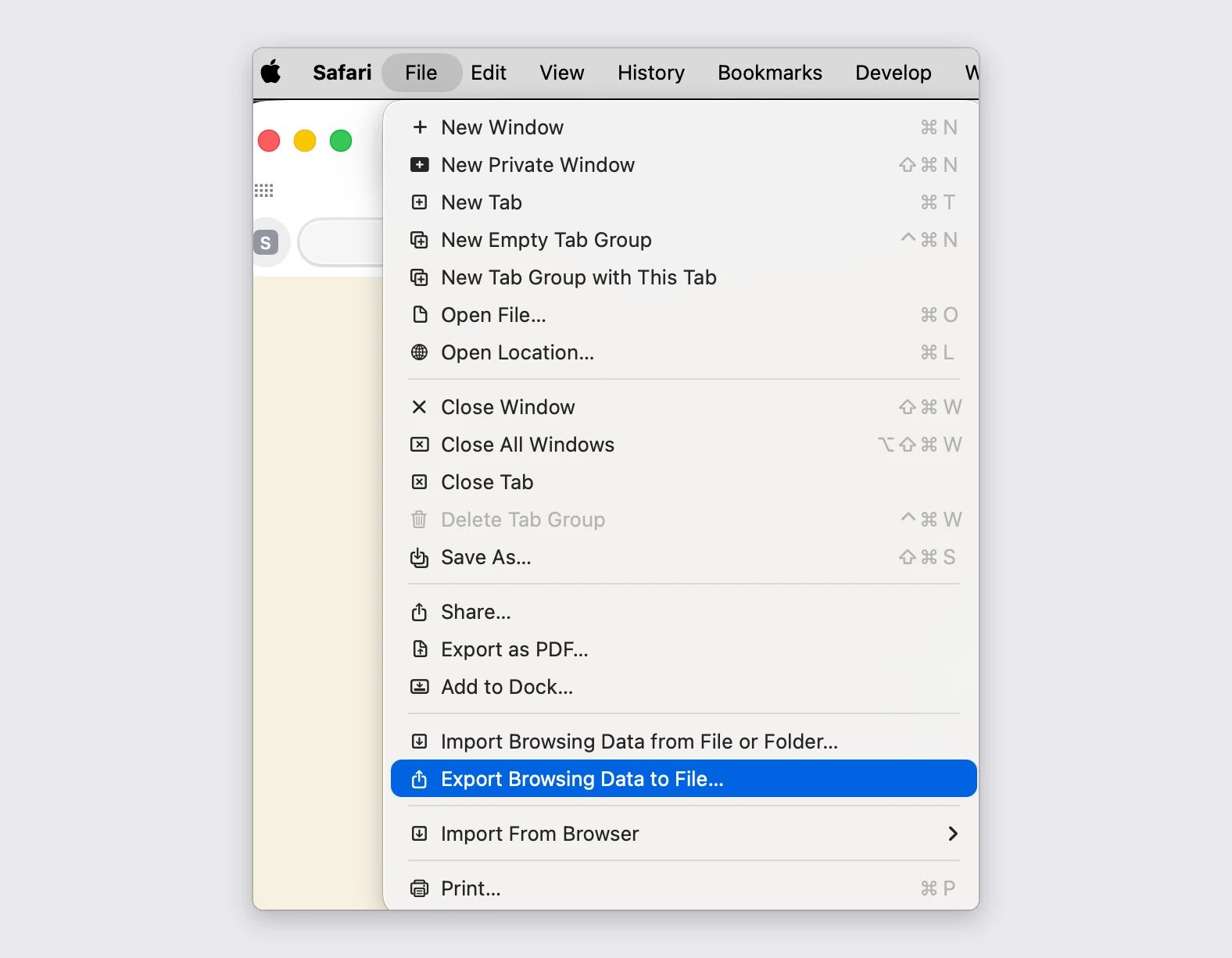
- Choose File > "Export Browsing Data to File..." in the menu bar.
- Switch off everything except Passwords, then click Export.
- Confirm with Touch ID or your Mac password. Safari saves a .zip holding Passwords.csv, and you can drop that .zip in here as it is.
- The Passwords app on macOS 15 and later exports the same rows through File > "Export All Passwords...", as a plain .csv.
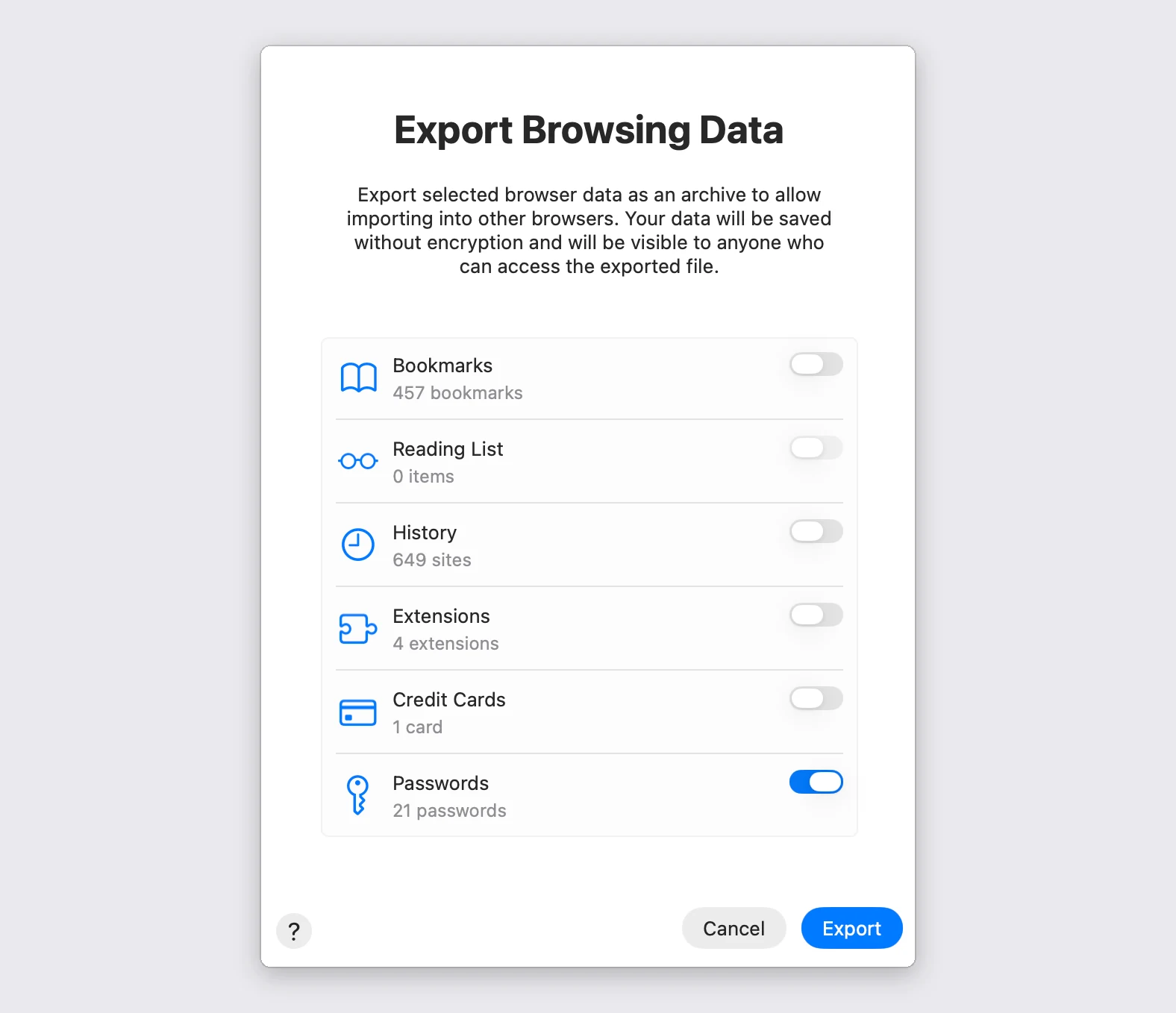
Leave only the Passwords switch on
The same window also exports your bookmarks, history and saved cards. Every switch you leave on writes another unencrypted file into the same archive, so turn them off. One exception: if you want your bookmarks here too, switch both on and drop the one .zip into both importers, because each reads only its own file out of it.
What comes across
Every row becomes a login with its site, username and password, plus the note the browser stored with it. Firefox is the only one of the three that writes dates, so its logins keep the day you first saved them and the others arrive dated today. Safari is the only one that exports an authenticator key, and only when you kept your verification codes in Safari; when it does, the code keeps working here.
Browsers save a separate entry per sign-in page, so a big export often holds several rows for one company. They all import, and you can merge or delete them afterwards.
A browser keeps passwords in one flat list, so there is no folder structure to rebuild. Every login arrives tagged instead, which pulls the whole batch up in one click.
Delete the export file when you are done: it is your passwords in plain text
Nothing in the exported .csv is encrypted, whether or not it arrives inside a .zip. Anyone who opens it reads every password you have saved, so keep it on your own machine, import it, check that everything arrived, and then delete the file and empty the trash. Inside PrivacyNotes it is encrypted again, on your device and on the way to the server.
Import into PrivacyNotes
- Open PrivacyNotes and go to Settings > Import & Export.
- Pick Browser passwords as the source.
- Drop in the file you just exported, or click to browse.
- Check what the preview says will arrive, then start the import.
Still stuck? Ask your AI agent.
You get an answer in seconds instead of waiting for a reply. Your assistant reads all 116 answers and every import guide at once, so it can combine them, follow up on your question, and explain it in your own words. We never see any of it, because we do not run a chatbot.
- Copy the prompt.
- Paste it into ChatGPT, Claude, Gemini, or any other AI assistant.
- Ask your question, in your own language.
- Keep that chat open. Next time, ask straight away.
Show AI prompt
Answer my questions about PrivacyNotes using only its help center, its changelog and its security documentation.

Start here: https://privacynotes.app/llms-index.txt
It lists every question with the page that answers it. Fetch the one or two that match mine.
If you can only make one request, fetch https://privacynotes.app/llms-full.txt instead.
If you cannot fetch a .txt or .md file, read https://privacynotes.app/help, https://privacynotes.app/changelog and https://github.com/LifetimeLabsDev/PrivacyNotes.app instead.

For what changed, or where something moved, fetch https://privacynotes.app/changelog.md.

For how the encryption works, what the server can read, or how to check any of it yourself, fetch https://privacynotes.app/docs/index.md and follow it to one of the documents it lists. That index is a router: cite the document, never the index.

Rules:
- Use only those pages. If they do not answer something, say so instead of guessing.
- Never invent a feature, a menu path, a price, or a limit.
- End your reply with the "Source:" URL from the page you used, exactly as written.
- Answer in the same language as my question.
- Never ask me for my recovery phrase, my PIN, or the contents of a note.

If no question follows, ask me what I would like to know.

My first question:
Never paste your recovery phrase, your PIN, or a note into an AI.