Help & FAQ/Import guides

Export your UpNote notes
UpNote's export is called a backup: it writes your whole account to a folder on disk, free plan included. Zip that folder and everything moves: notes with their full formatting, notebooks, tags, pins, note links, images, and attachments.
Create a local backup
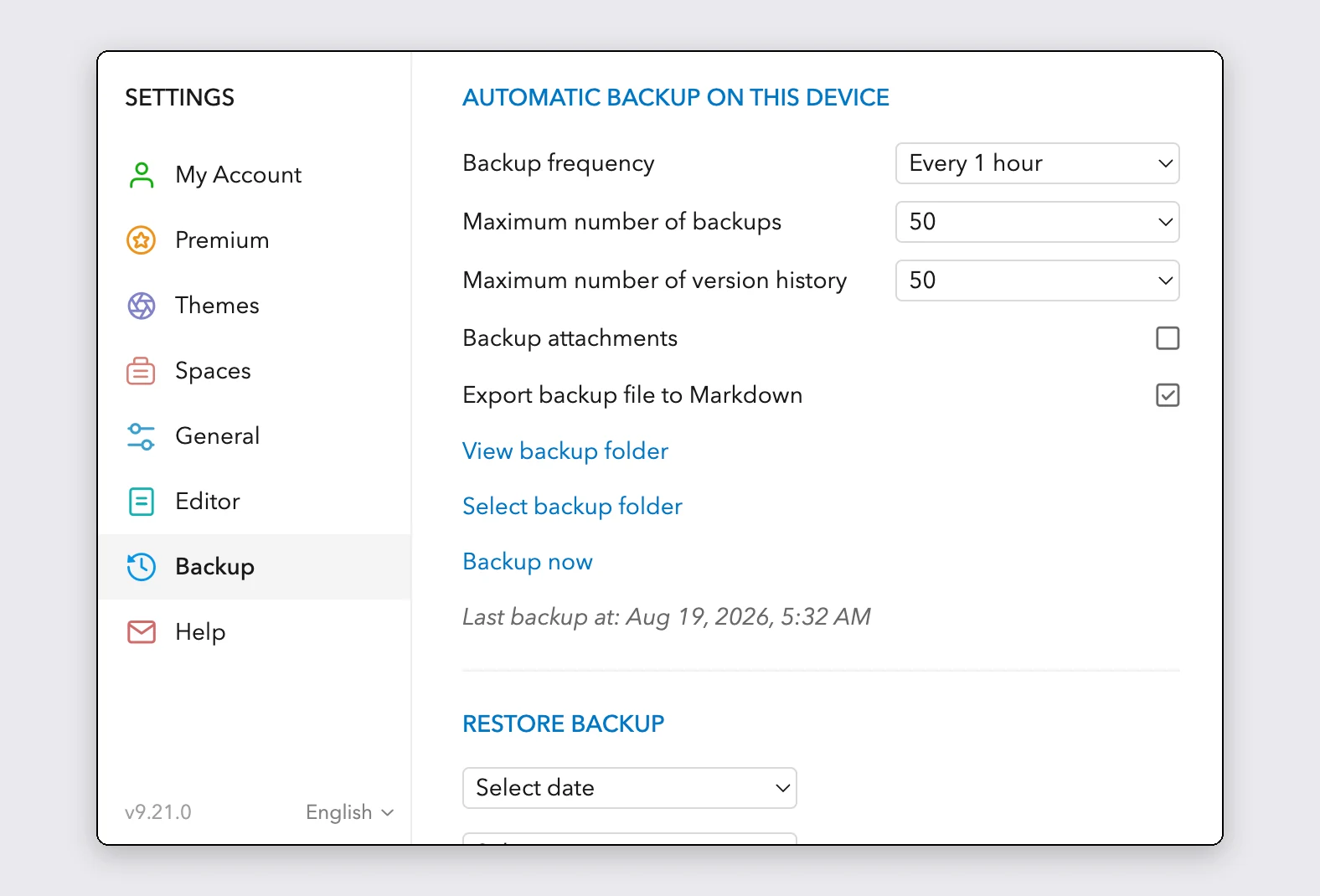
- Open UpNote on your computer and go to Settings > Backup.
- Turn on "Backup attachments". It is off by default, and without it your images and files stay behind.
- Click "Backup now" and wait for the "Last backup at" line to update.
- Click "View backup folder". UpNote opens the folder it just wrote.
Zip everything in that folder
Zip the whole folder, not just the Markdown folder inside it. Those markdown copies are a flattened rendering: underline, colors, highlights, collapsible sections, and text alignment are already gone from them. Your notes' full formatting lives in the data folder, and that is what we read. Drop a zip without it and we will say so rather than import the flattened copies.
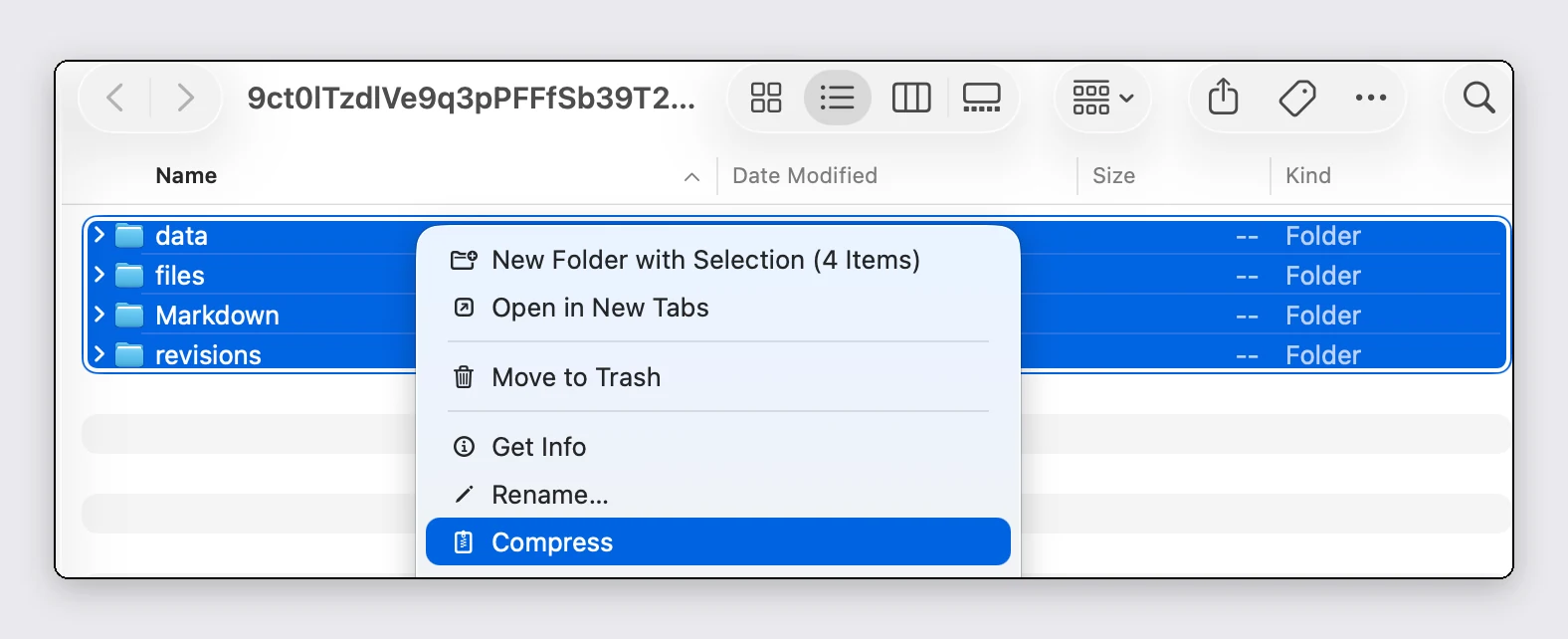
- Select everything in the backup folder: data, files, and whatever sits beside them.
- Compress the selection: right-click > Compress on macOS, or Send to > Compressed (zipped) folder on Windows.
- That .zip is your import file.
On iPhone or Android: export notes one at a time
The HTML export brings your formatting across in full. What no per-note export carries is library structure: notebooks, pins, and dates only live in the backup, so once you reach a computer, the backup route above completes the move. Markdown exports are accepted too, with the flattening they bring.
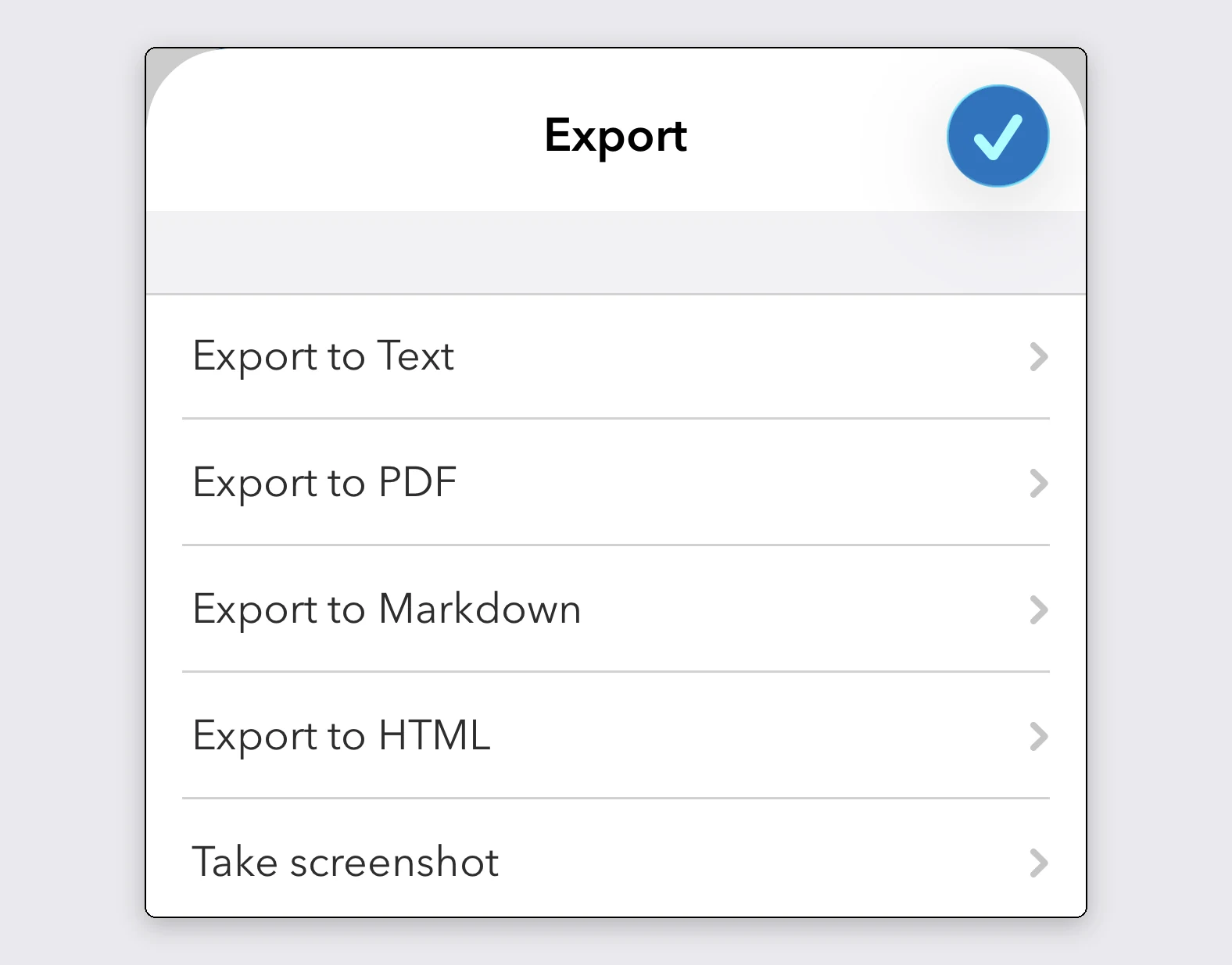
- UpNote's phone apps cannot write a backup. Instead, open a note and tap the three dots in the top corner.
- Choose Export > "Export to HTML". Not Markdown: UpNote flattens callouts, text colors, alignment, and sub- and superscript before writing its Markdown, while the HTML keeps everything.
- Share the result to your Files app or send it to yourself, then drop it here unmodified.
- Moving several notes? Save the exports into your Files app, select them all, and Compress: that one zip imports in one go.
What comes along
Your notebooks are rebuilt as real folders, nested as deep as UpNote nested them. A note that lived in several notebooks lands in the first one and carries the others as tags.
Pinned and Quick Access notes arrive as Pinned. Trashed notes land in the trash, templates import as notes tagged #template, links between notes become note-links, and every note keeps its original dates.
Formatting survives: checklists, tables, code blocks, math, underline, sub- and superscript, text alignment, and highlights. Collapsible sections become foldable callouts and keep their open or closed state. Text colors and highlight colors are both matched to the editor's own palette, so a yellow highlight stays yellow and a green one stays green. Each note imports as it stands, at the version UpNote last saved.
If images or files are missing
A backup made before you ticked "Backup attachments" has no files in it, and the import preview will warn you that notes reference attachments the backup does not carry. If it does, cancel, turn the setting on in UpNote, click "Backup now" again, zip the fresh folder, and import that instead.
Import into PrivacyNotes
- Open PrivacyNotes and go to Settings > Import & Export.
- Pick UpNote as the source.
- Drop in the file you just exported, or click to browse.
- Check what the preview says will arrive, then start the import.
Still stuck? Ask your AI agent.
You get an answer in seconds instead of waiting for a reply. Your assistant reads all 95 answers and every import guide at once, so it can combine them, follow up on your question, and explain it in your own words. We never see any of it, because we do not run a chatbot.
- Copy the prompt.
- Paste it into ChatGPT, Claude, Gemini, or any other AI assistant.
- Ask your question, in your own language.
- Keep that chat open. Next time, ask straight away.
Show AI prompt
Answer my questions about PrivacyNotes using only its help center, its changelog and its security documentation.

Start here: https://privacynotes.app/llms-index.txt
It lists every question with the page that answers it. Fetch the one or two that match mine.
If you can only make one request, fetch https://privacynotes.app/llms-full.txt instead.
If you cannot fetch a .txt or .md file, read https://privacynotes.app/help, https://privacynotes.app/changelog and https://github.com/LifetimeLabsDev/PrivacyNotes.app instead.

For what changed, or where something moved, fetch https://privacynotes.app/changelog.md.

For how the encryption works, what the server can read, or how to check any of it yourself, fetch https://privacynotes.app/docs/index.md and follow it to one of the documents it lists. That index is a router: cite the document, never the index.

Rules:
- Use only those pages. If they do not answer something, say so instead of guessing.
- Never invent a feature, a menu path, a price, or a limit.
- End your reply with the "Source:" URL from the page you used, exactly as written.
- Answer in the same language as my question.
- Never ask me for my recovery phrase, my PIN, or the contents of a note.

If no question follows, ask me what I would like to know.

My first question:
Never paste your recovery phrase, your PIN, or a note into an AI.